
![[Laser cut and engrave] Rabbit Lantern](https://image-res.atomm.com/ali-res/community/making/fc0b8c72-d1d4-454c-9383-3cca39ac8cc2.png?x-oss-process=image/resize,m_fill,w_1280,h_960,limit_0/interlace,1/format,webp/auto-orient,1)
![[Laser cut and engrave] Rabbit Lantern](data:image/png;base64,iVBORw0KGgoAAAANSUhEUgAAAAoAAAAKCAYAAACNMs+9AAAAAXNSR0IArs4c6QAAABdJREFUKFNjZCASMBKpjmFUId6QIjp4AAppAAuXjCs4AAAAAElFTkSuQmCC)
![[Laser cut and engrave] Rabbit Lantern](https://image-res.atomm.com/ali-res/community/making/fc0b8c72-d1d4-454c-9383-3cca39ac8cc2.png?x-oss-process=image/resize,m_fill,w_160,h_120,limit_0/interlace,1/format,webp/auto-orient,1)
![[Laser cut and engrave] Rabbit Lantern](https://image-res.atomm.com/ali-res/community/making/56abee3d-aa8b-465f-8c5b-6f5a13f7a79c.png?x-oss-process=image/resize,m_fill,w_160,h_120,limit_0/interlace,1/format,webp/auto-orient,1)
![[Laser cut and engrave] Rabbit Lantern](https://image-res.atomm.com/ali-res/community/making/afcd872b-7bdf-4368-aaaf-21163ced885d.png?x-oss-process=image/resize,m_fill,w_160,h_120,limit_0/interlace,1/format,webp/auto-orient,1)
Rabbit Lantern
 Instruction


Information
      2023 is here. For the Chinese, this is the Year of the Rabbit, and in my family, our New Year celebration usually lasts till January 15th, ending with the Lantern Festival, there will be lanterns displayed everywhere, and each kid will carry their own lantern and walk around the neighborhood, showing off their unique lantern or admiring all others' creations. Here is my version of the laser Rabbit lantern for the year 2023.

Of course, I'm still making it in my favorite recycled cardboard but it definitely can be done with the wood of your choice.
I include 3 files, a Silhouette Studio 3, an SVG, and an XCS, so you will be able to add your own text or images to personalize it.
Instruction
Step1

Designing Step 1:
Finding the artwork, and deciding on the software.
There are many rabbit images, and the image I chose is a Chinese paper-cutting art design, this is a very popular and inexpensive way to decorate for holidays, and events....typically bright red paper are used, and detailed, intricate designs are cut out with a pair of household scissors.
I download the image and import it into the software I choose to use, which is Silhouette Studio, many of the functions I used are very common, and are available in different software, such as Inkscape, and AI...
Step2
Converting Raster Image to Vector Image
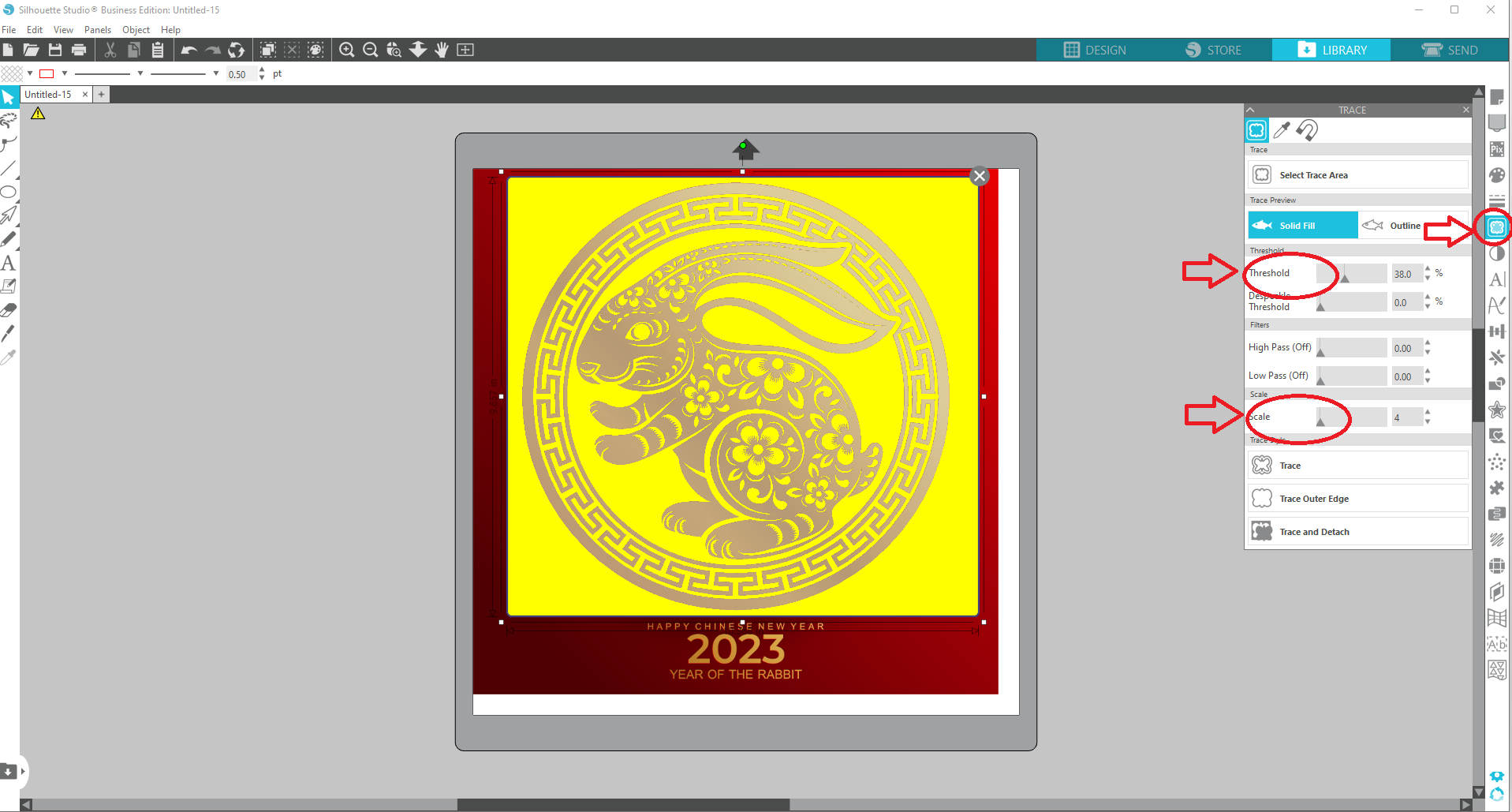
Tracing the PNG image
- Enter the window for the tracing area, the area turns yellow,
- Adjust the "scale", and "Threshold" to adjust the details of the final image
- Enter "Trace", and wait for the yellow highlight to disappear, it will appear that nothing had changed, but there is a vector image created right under the original
- Select the original, and move it to the side, if you see the new vector image, then go ahead and delete the original


Step3
Cleaning up and Fine Tuning the image
Step 1: Filling up the gaps
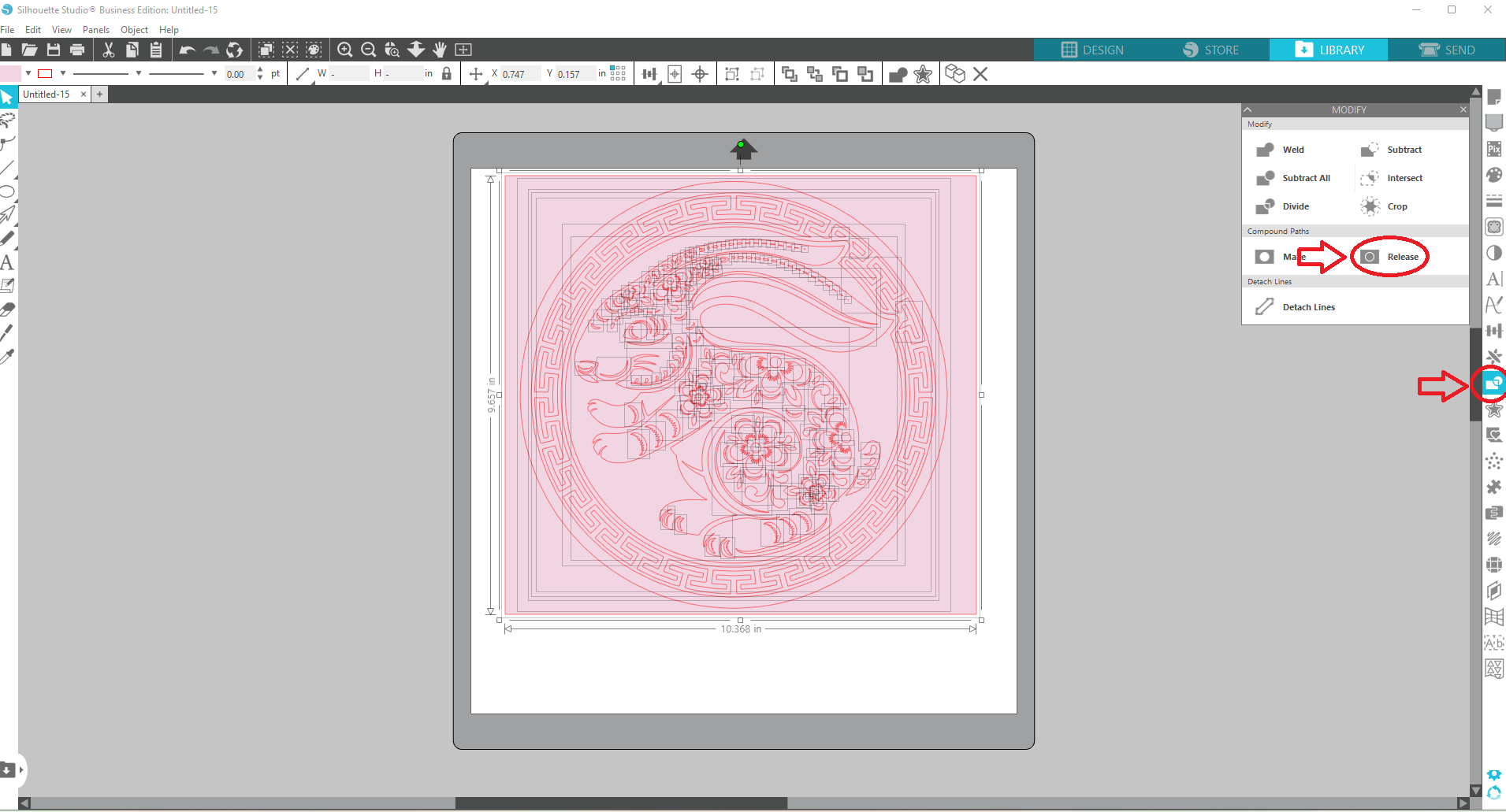
- Fill the image with soft color, this help to see what is happening
- Use "Release Compound Path" to break the image into individual geometries
- Carefully select and delete the pieces you don't need
- Select the whole thing and use "Subtract" to make the cut-out again


Step4
Cleaning up and Fine Tuning the image
Step 2:
Close up some open areas, to make the image outline more complete,
- Adding appropriate geometries to connect the dots, "Point Editor" can help to smooth out the shape
- Select everything and "Weld" them together

Step5
Cleaning up and Fine Tuning the image
Step 3: Delete or alter tiny geometries
- Select the image, with "Release Compound Path" and break the image into separate pieces again
- Carefully select and delete the unwanted tiny piece
- Or use "Point Editor", to enlarge some of the pieces that you think you would like to stay.
- Select everything, and "Subtract" to make the cut out again.

Step6
Cleaning up and Fine Tuning the image
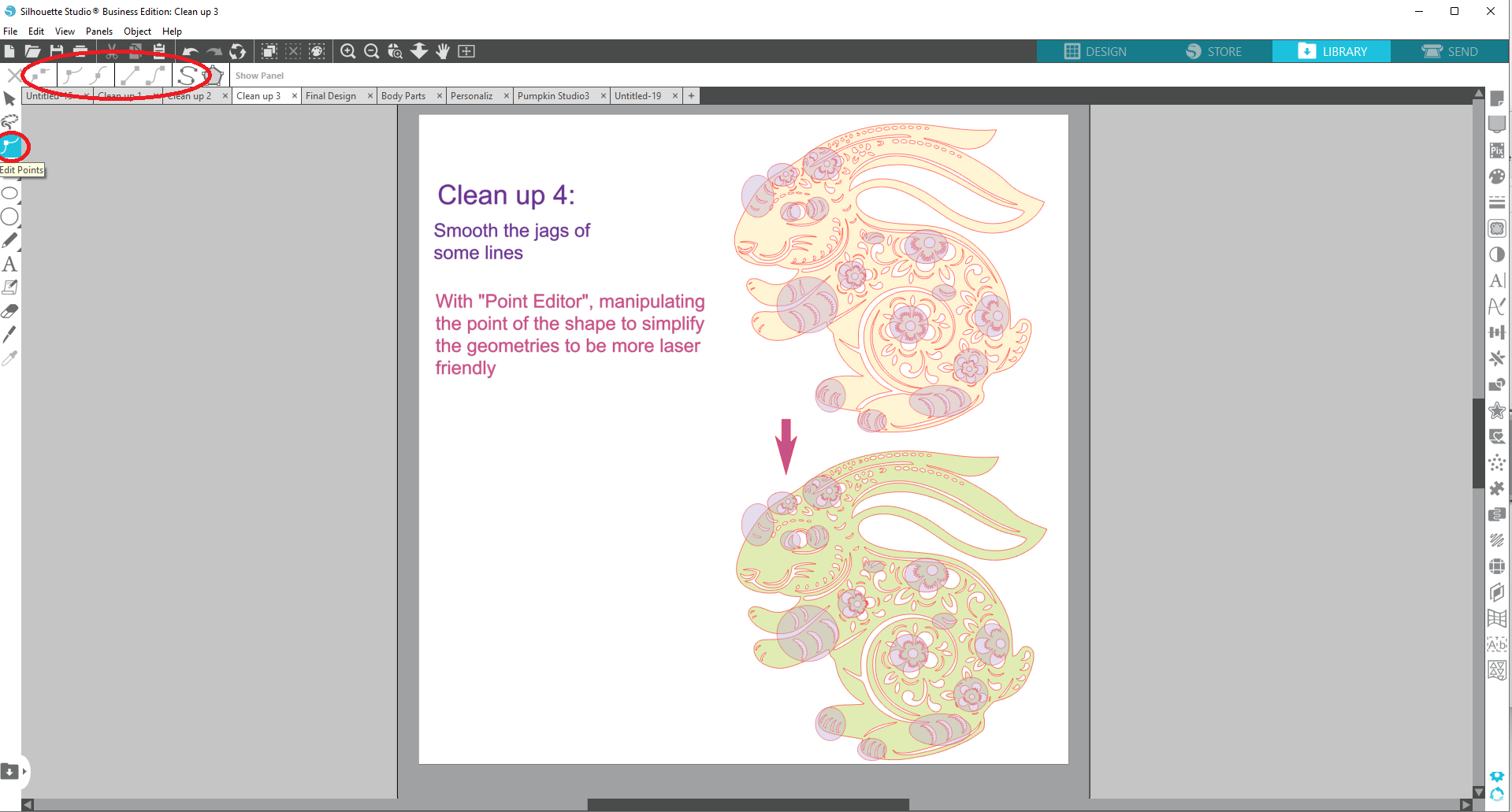
Step 4: Simplifying the design
"point Editor" can help to manipulate and simplify some area
Step7
Cleaning up and Fine Tuning the image
Step 4: Flatten the Bottom
At this point, the design should be ready for cutting, but I'm preparing to make a standing lantern, so flattening the bottom edge will work a lot better.
- Add a rounded corner rectangle to match the bottom of the rabbit
- Use "Point Editor" to stretch the shape to fit
- Then move the details in that area around to complete the design
- Select everything and weld them together


Step8
Personalize it!!
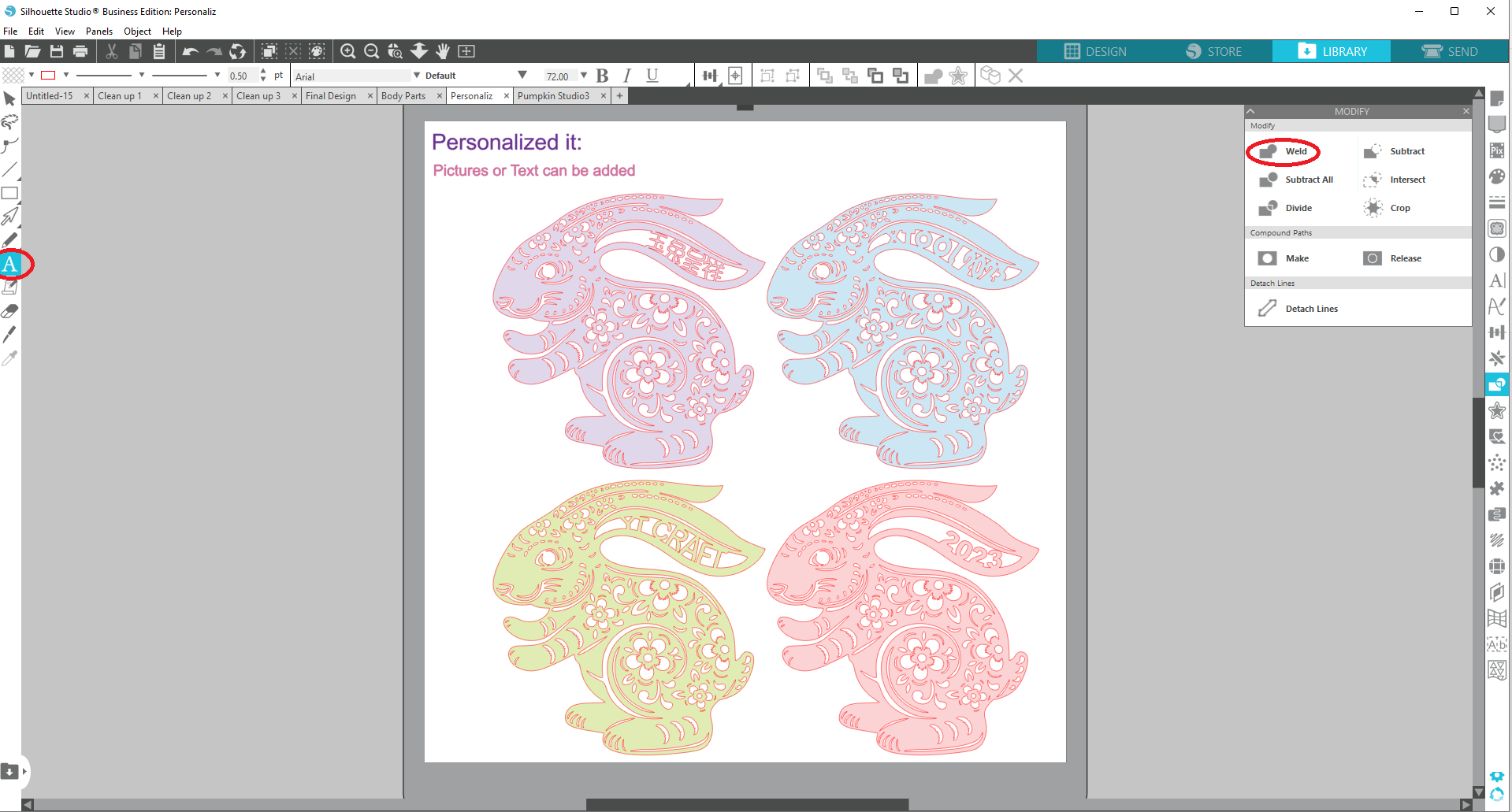
Here are some samples for your reference
You can add images (which the Chinese characters are), add Text, and use the "Curve to shape" function to line the text according to the open area.
But Important to know that for the back side, you need to "redo" the text again, just by flipping the front horizontally, the text will be flipped as well.
.png)
Step9
Preparing the Body Parts:
- Front Face layer
- Back Face layer, just duplicate the front face layer and flip horizontally
- Full Doughnut Ring Layer
a. Use "Release Compound Path" to break everything into pieces again, "weld" everything together into one solid piece
b. Use "Inward Offset" to create a geometry 0.1" smaller
c. Select both, and "Subtract" to create a 0.1' doughnut ring.
Cutout Doughnut Ring Layer
Insert a rectangle (size is determined by the light fixture) over the bottom edge of the doughnut ring, then select both, and
"Subtract" to create a cutout
Now all layers needed are prepared, save the file in SVG format and it is ready for cutting.

Step10
Processing
Open xTool Creative Space
Turn on M1, and connect XCS to M1
Turn on the Air purifier & Air Assist
Lay down the material which is cardboard in my case
Set to Laser flat, Automeasure the thickness of the material
Import the SVG file, place the image at the proper location on the material
Set to "score", with the setting of "70/10/1"
Click "Process"
I know, that I definitely need one front face and one back face, and 4 full doughnut rings, 2 for the front 2 for the back, as far as the cutout doughnut ring, it depends on the thickness of the material, it might vary, but I figure it should be anywhere from 10-14.

Step11
Dressing up - This step is entirely optional
Since I create and make this for the Chinese New Year celebration, and red is the lucky color for the Chinese, I decided to color the front and back face pieces red, maybe with a touch of gold accent, I was planning to add color cellophane paper behind the cutout, to create a stained glass look, I ended up deciding to against the idea, but you can still give it a try and see whether you like it or not.

Step12
Assembly
After the paint is dried, we are ready to put together the lantern. The real fun begins, we will see the design come to life. Putting it together is relatively easy, choose a glue you like, I like Aleen's Clear Gel Tacky glue, because of the texture, and it is less messy during the process.
I began by:
- Laying the Front Face layer face down on the work surface
- glue 2 layers of Full Doughnut Rings on the back side of the front face layer
- then glue 10-12 layers of Cutout Doughnut Ring
- add 2 more layers of Full Doughnut Ring
- Now it is time to glue the LED Light Fixture ring, I like to use at least 2 of them, then secure the light fixture in place
- Test the light fixture, and make sure the fixture is set properly and firmly
- Finish up with the last layer which is the Back Face Layer
**Optional: at step 5, you can also add some string on top, in case that you decide to hang the lantern instead

.png)

Remixes


You may also like

Set of 3 Cute Bunnies for Spring or Easter Decor


Dragon Year 2024

New Year ornament

Ostern / Osterhase - Hase mit Schubkarre

Christmas Ornaments Ball


Decorative Wreath


Spring Easter Basket Play Set

Rabbit Easter egg holder 3D / Support d'oeuf de Paques lapin 3D


Unique Rectangular Wood Piece


Black Cat in a Jack O Lantern

Cardboard Easter Bunny Decor

Plateau Père Noel

Lucky charms as a gift for New Year's Eve.


Celebrating 2023 Christmas


Christmas Ornament Balls Set of 3

Custom 3D sign

New Years Eve Glasses


Engraved And Carved Easter Eggs
